


If you’ve ever tried to send a long video from your iPhone and thought, “Did that actually send?” — you’re not alone.
iPhones shoot incredible video now. 4K, HDR, screen recordings, long clips. But sharing those videos is still… kind of weird. Some methods work great in the right situation, others quietly fail, compress things into mush, or get stuck forever on “Preparing…”.
This guide walks through every built-in way to share long videos on an iPhone in 2026, what each one is best for, and how to avoid the most common frustrations.
What Counts as a “Long” Video in 2026?

In 2026, “long” doesn’t even have to mean that long.
A few things that make videos big fast:
- 4K video
- HDR
- High frame rates
- Screen recordings
- A few minutes of footage instead of a few seconds
A 3–5 minute clip can easily be hundreds of megabytes or more, which is where most sharing methods start to struggle.
Sharing Long Videos with Messages (iMessage / SMS)

Best for: quick, casual sharing with friends or family
This is what most people try first.
How to do it
- Open the Photos app
- Select your video
- Tap Share → Messages
- Pick a conversation and send
What actually happens
- iOS usually compresses the video automatically
- The video uploads in the background
- Messages tries to handle the rest
The reality
- Quality almost always drops
- Longer videos can take a long time to send
- Sometimes it fails with zero explanation
Tips
- Stay on Wi-Fi
- Keep Messages open
- Don’t lock your phone immediately
If it sends, great. If not… you’ll usually find out later.
Sharing Long Videos with AirDrop

Best for: in-person sharing, full quality
AirDrop is still one of the most reliable ways to move big videos — if the other person is nearby.
How to do it
- Make sure AirDrop is enabled on both devices
- Open Photos and select the video
- Tap Share → AirDrop
- Choose the other device
Why it works so well
- No internet required
- No compression
- Very fast
Downsides
- Both people have to be physically close
- Discovery can be flaky if settings aren’t right
If you’re standing next to someone and want to share a big video fast, AirDrop is still hard to beat.
Sharing Long Videos with iCloud Links (Photos App)

Best for: remote sharing without installing anything
This is Apple’s default “long video” solution.
How to do it
- Open Photos
- Select your video
- Tap Share → Copy iCloud Link
- Send the link
What’s happening behind the scenes
- Your video uploads to iCloud
- Apple generates a temporary share link
- The recipient streams or downloads it
Common issues
- “Preparing…” can take a long time
- Uploads pause when the app goes to the background
- Links expire
- You don’t always know when it’s ready
Tips
- Keep Photos open until the link finishes preparing
- Plug your phone in
- Use Wi-Fi if possible
When it works, it’s convenient. When it doesn’t, it’s confusing.
Sharing Long Videos with the Files App

Best for: people who already live in the Files app
The Files app acts as a hub for cloud storage and file management.
How it works
- Save or move your video into Files
- Upload it using a connected storage provider
- Share a link from there
Pros
- Flexible
- Works with many services
Cons
- More steps
- Permissions and folder organization can get messy
- Not designed around presentation
Great for power users, less great for quick sharing.
Which Built-In Method Should You Use?
There’s no single “best” option — just the right one for the moment:
- Quick & casual: Messages
- In person: AirDrop
- Remote, no setup: iCloud Link
- Professional email: Mail Drop
- Advanced workflows: Files
Knowing which tool to use matters more than the tool itself.
Sponsored: Sharing Long Videos Without the Guesswork

Built-in tools work — until you’re sharing long videos often.
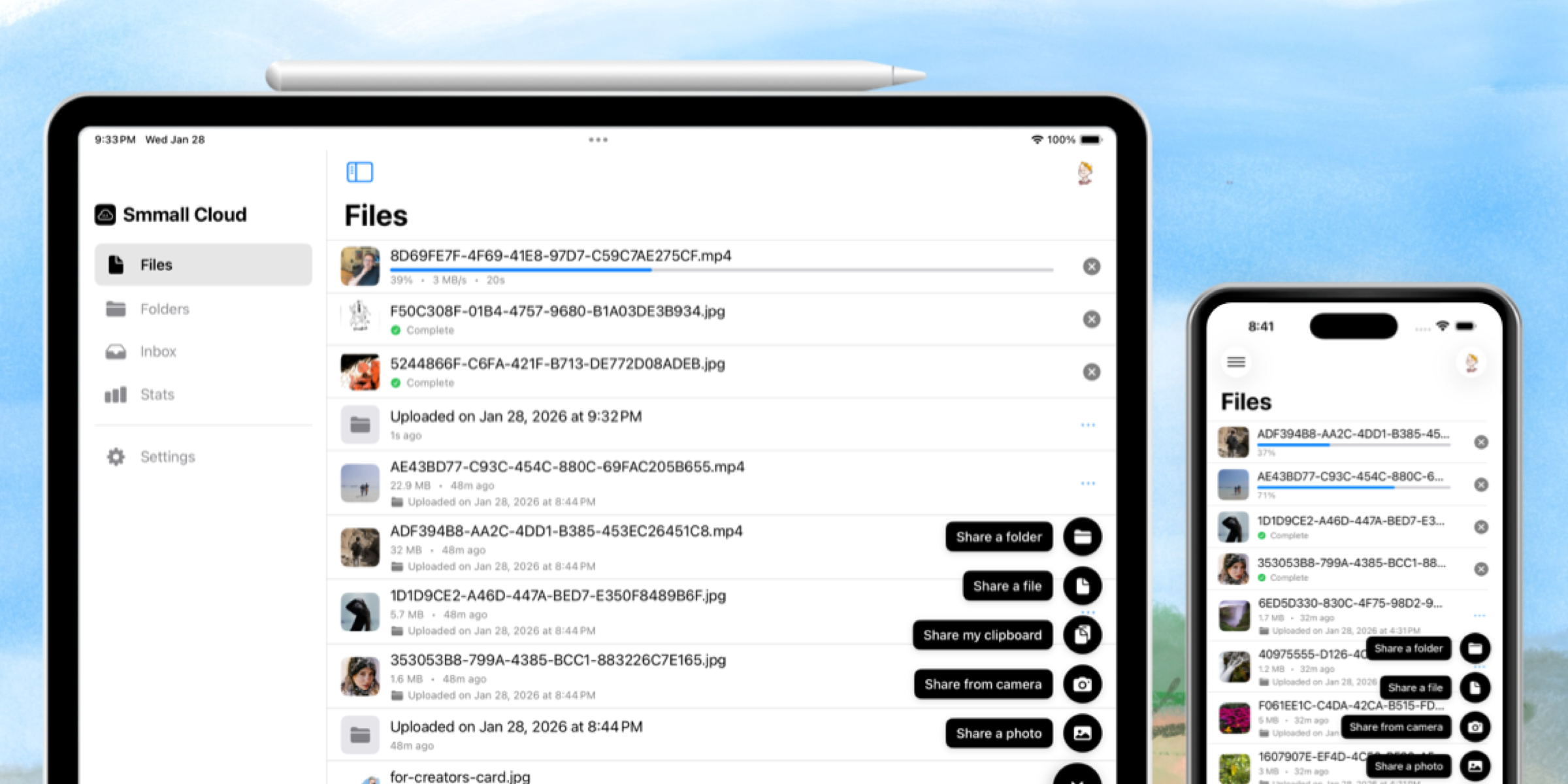
Smmall Cloud is designed specifically for sharing, not just storing files. The workflow is simple:
- Upload your video
- Get a link
- Send it
The video streams cleanly in the browser, doesn’t require the recipient to install anything, and avoids the usual “did it send?” anxiety.
It’s especially useful for:
- Creators
- Freelancers
- Screen recordings
- Long family or travel videos
- Anyone tired of retries and compression
If sharing long videos is something you do regularly, having a tool built for it makes a noticeable difference.
Final Thoughts
Your iPhone already gives you several ways to share long videos — but each one has limits.
Once you know what those limits are, sharing gets a lot less frustrating. And if video sharing is part of your regular workflow, using a tool designed specifically for that job can save a lot of time and second-guessing.